
Eightfold
Use CLEAR within Eightfold
Configure Identity Verification for AI Interviews
Purpose
This article explains how admins turn on CLEAR identity verification for AI Interviews. It also explains the candidate verification experience and how reviewers see the results.
Overview
Secure and trustworthy digital hiring needs candidate identity verification. The Eightfold AI Interviewer integrates with CLEAR to give candidates a secure, user-friendly verification step before the AI interview starts.
CLEAR verifies the candidate and sends the result to Eightfold through a webhook. Eightfold matches the verified identity to the candidate's resume and profile.
| Responsibility | |
|---|---|
| CLEAR | Verifies that the person is real and that the ID document is valid. Sends the verification result to Eightfold through a webhook. |
| Eightfold | Provides the webhook URL. Matches the CLEAR verified identity to the candidate's resume and profile. Shows the verification status to reviewers. |
| Customer admin | Holds the CLEAR agreement and credentials. Adds the Eightfold webhook in CLEAR Console. Enters the credentials in the Eightfold Admin Console. |
Prerequisites
Eightfold
- Eightfold AI Interviews in use.
- Admin access to the Eightfold Admin Console.
- The Eightfold webhook URL:
<EIGHTFOLD_WEBHOOK_URL>
CLEAR
- A CLEAR Customer Agreement.
- Access to CLEAR Console.
- A CLEAR Project ID.
- A CLEAR API Key, one per environment (for example sandbox and production).
- A CLEAR webhook with a Bearer Token and HMAC Secret. You create these in Step 1.
Reminder: Keep the API Key, Bearer Token, and HMAC Secret secret. Enter them only in CLEAR Console and the Eightfold Admin Console.
Enablement (for admins)
Step 1: Set up CLEAR (CLEAR Console)
- Sign in to CLEAR Console.
- Create a project. Copy the Project ID.
- Create an API Key. Copy it and store it in a safe place.
- Add a webhook for the project:
- For the webhook URL, enter the Eightfold webhook URL:
<EIGHTFOLD_WEBHOOK_URL> - Set a Bearer Token and an HMAC Secret. Copy both values.
- For the webhook URL, enter the Eightfold webhook URL:
Important: CLEAR sends all webhook events for an environment to one URL. If you already use a CLEAR webhook for another system, contact your CLEAR point of contact before you change it.
Step 2: Turn on CLEAR in Eightfold
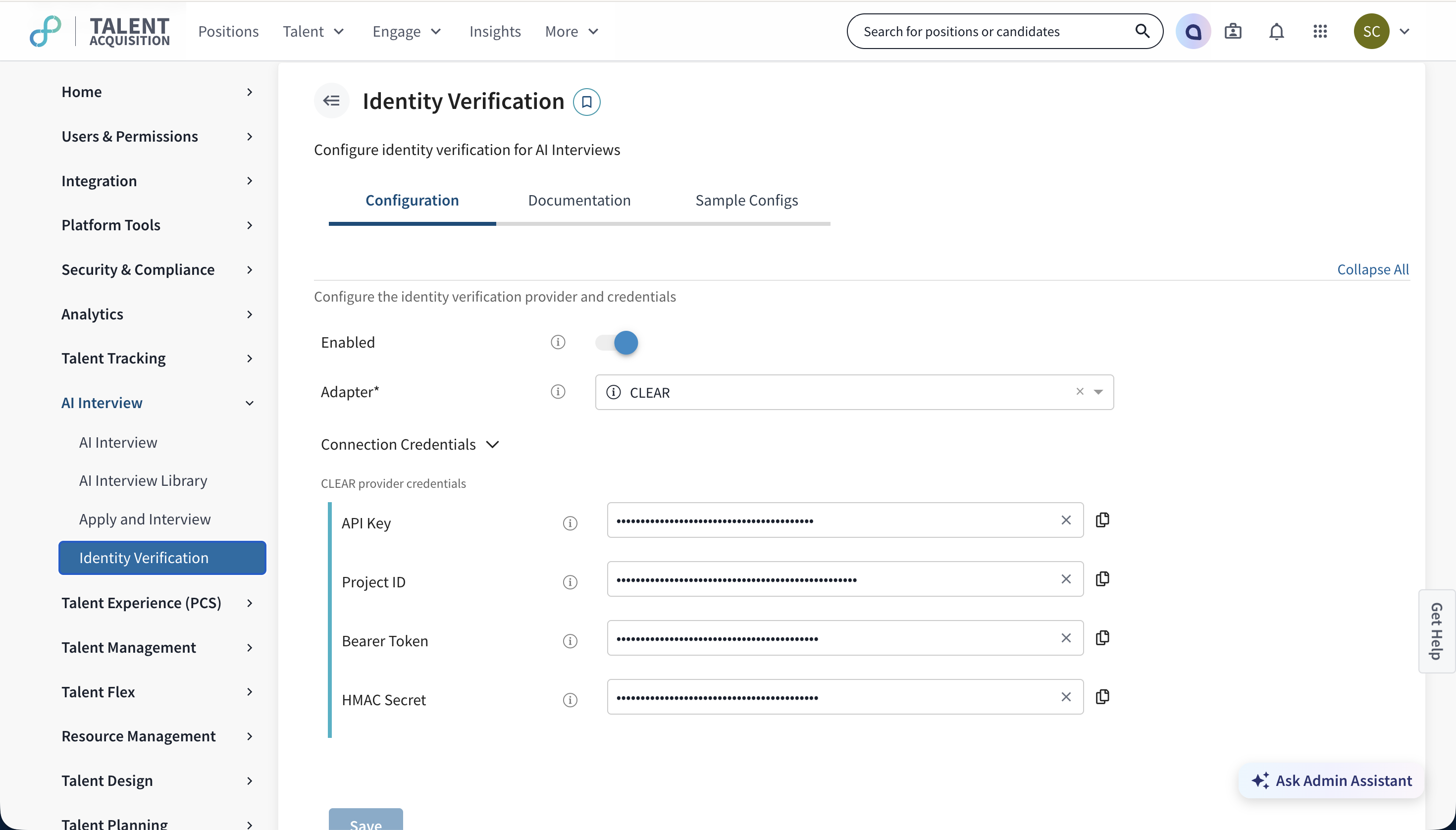
- Go to Admin Console > AI Interview > Identity Verification.
- Select the Configuration tab.
- Turn on Enabled.
- For Adapter, select CLEAR.
- Expand Connection Credentials.
- Under CLEAR provider credentials, enter these values:
- API Key: your CLEAR API key
- Project ID: your CLEAR project ID
- Bearer Token: the Bearer Token you set on the CLEAR webhook
- HMAC Secret: the HMAC Secret you set on the CLEAR webhook
- Select Save.
Step 3: Choose who must verify
Identity verification is a step in the AI interview pre-check flow for configured groups.
<STEPS TO CHOOSE THE GROUPS OR INTERVIEWS THAT REQUIRE VERIFICATION>
Verify identity before the interview
Step 1: Begin verification
- When a candidate starts the AI interview, Eightfold guides the candidate to the verification step.
- The candidate sees a Verify with CLEAR button.
- The candidate selects the button. CLEAR opens in a new pop-up window or tab, and the candidate verifies directly with CLEAR.
Step 2: The verification process
The steps depend on whether the candidate is a new or a returning CLEAR user:
| Candidate type | Required action | Goal |
|---|---|---|
| New CLEAR user | Enters first and last name, scans a valid government-issued ID (such as a passport), and takes a selfie. | Create a verified CLEAR account and confirm identity. |
| Returning CLEAR user | Takes a selfie only. | Confirm identity with the existing verified CLEAR profile. |
Note: If a candidate uses an ID from an unsupported country, CLEAR tells the candidate and stops the flow.
<LINK TO CLEAR SUPPORTED ID LIST>
Step 3: Completion and status display
After the candidate completes verification, CLEAR sends the result to Eightfold through the webhook. Eightfold matches the verified identity to the candidate's resume and profile. CLEAR then returns the candidate to the AI interview page.
- Success: The candidate can start the interview.
- Failure: If verification fails (for example, because of an invalid or blurry document), an InfoBar shows that ID verification failed. The candidate cannot start the interview, but can select the verification button again to restart.
Avoid stale verification status
To prevent fraud, the verification status is tied to the candidate's active session:
- If a candidate verifies, leaves the interview page, and doesn't return within the configured time (about 2 or 20 minutes), the status resets to unverified. The candidate must verify again.
- If a candidate opens the interview link in a different browser (for example, an incognito window or Firefox), the status resets. The candidate must verify again.
This stops a verified candidate from sending the link to another person.
Check verification status
Feedback reviewers can see the candidate's verification status on the interview feedback form.
- A badge on the feedback form shows the status.
- Hover over the badge to see the verification details.
| Status | Meaning |
|---|---|
| Verified | The candidate completed CLEAR verification. |
| Unverified / Failed | The candidate didn't attempt verification or didn't pass. |
Validation
Before you use the setup with real candidates, confirm that it works in a sandbox:
| Check | Expected result |
|---|---|
| Verify button | The candidate sees Verify with CLEAR. CLEAR opens in a pop-up window or tab. |
| Webhook | Eightfold receives the verification result from CLEAR. |
| Verification passes | The candidate returns to the interview page and can start the interview. |
| Verification fails | An InfoBar shows that verification failed. The candidate can retry. |
| Session reset | Opening the link in a different browser resets the status to unverified. |
| Feedback form | The badge shows Verified or Unverified / Failed. |
Resources
- CLEAR Configuration Guide: Contact your dedicated CLEAR point of contact.
- CLEAR Console: Create projects, API keys, and webhooks.
- Eightfold Identity Verification configuration: https://app.eightfold.ai/integrations/ai_interview_identity_verification_config?tab_id=configuration_form&subtab_id=provider
- Eightfold: Configure 360 AI Interviews
Updated 5 days ago