
Okta SCIM Setup
This guide walks you through setting up SCIM provisioning with Okta for CLEAR
Create an API Key in CLEAR
-
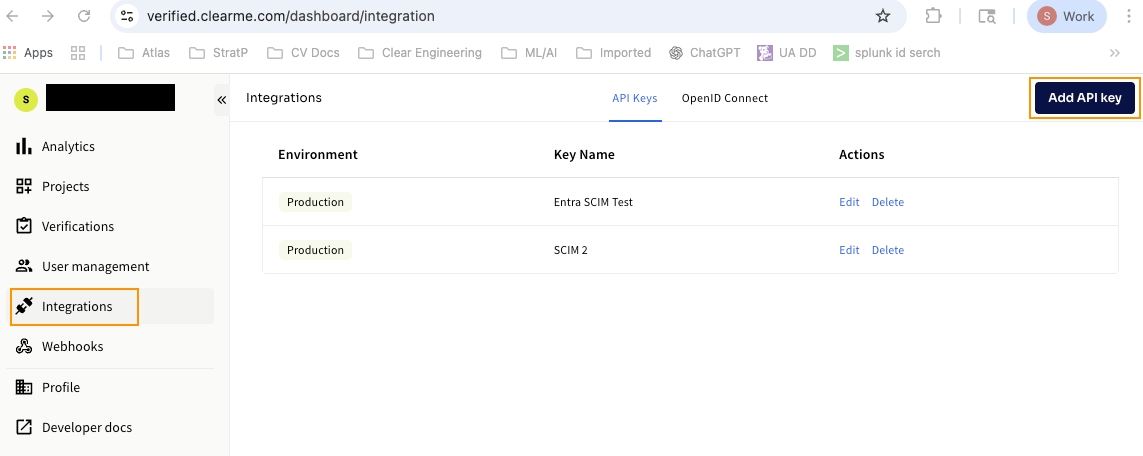
In CLEAR, go to Integrations → Add API Key
-
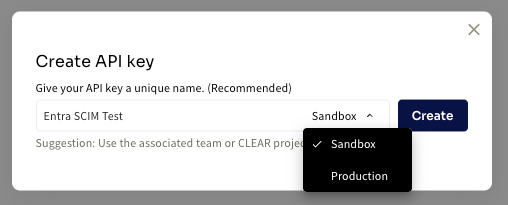
Name your key and choose Sandbox or Production (if unsure, most cases are Production)
-
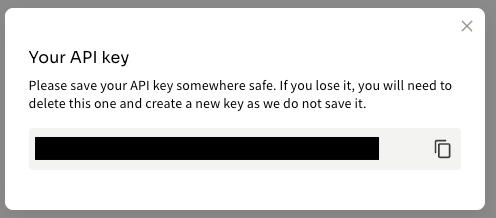
Important: Copy the key now — it won’t be shown again.
Create a SCIM App in Okta
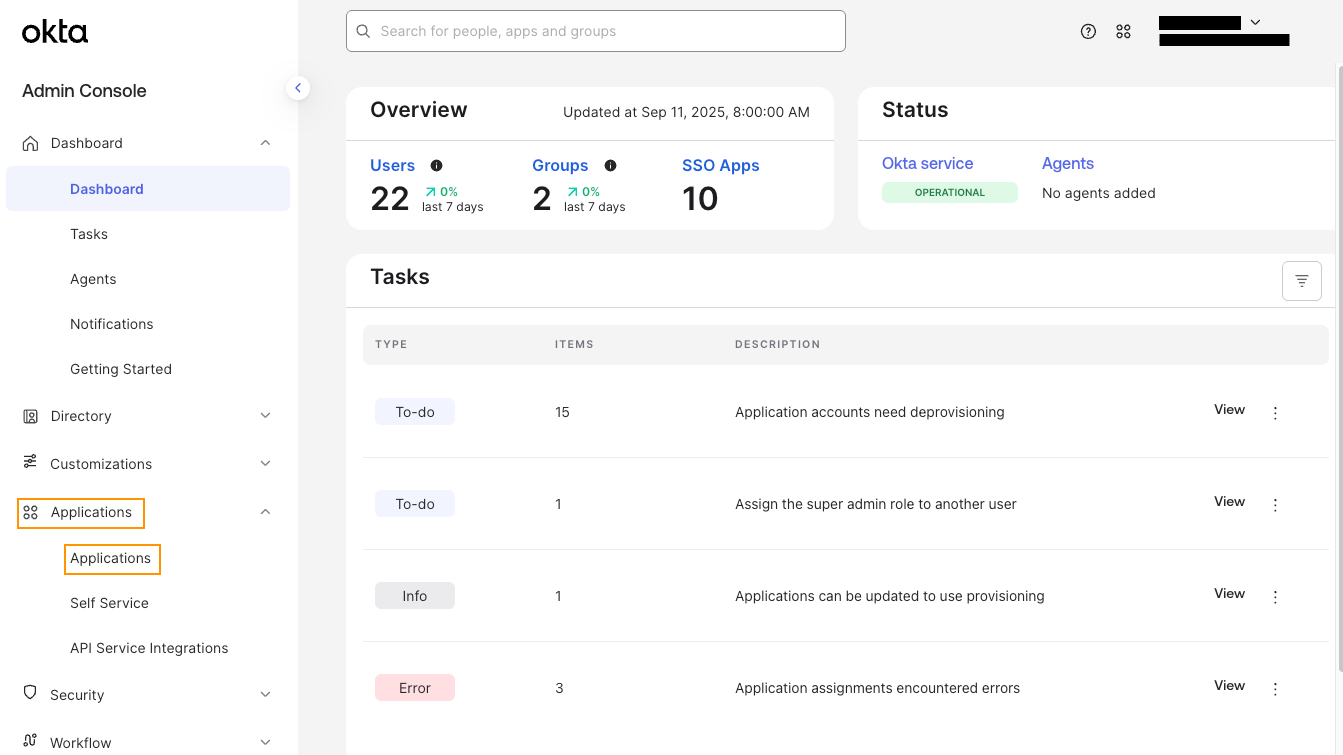
Sign in to the Okta Admin Dashboard
Go to https://{okta_domain}-admin.okta.com/admin/dashboard and log in with your Okta administrator account.
-
Go to Applications → Create App Integration
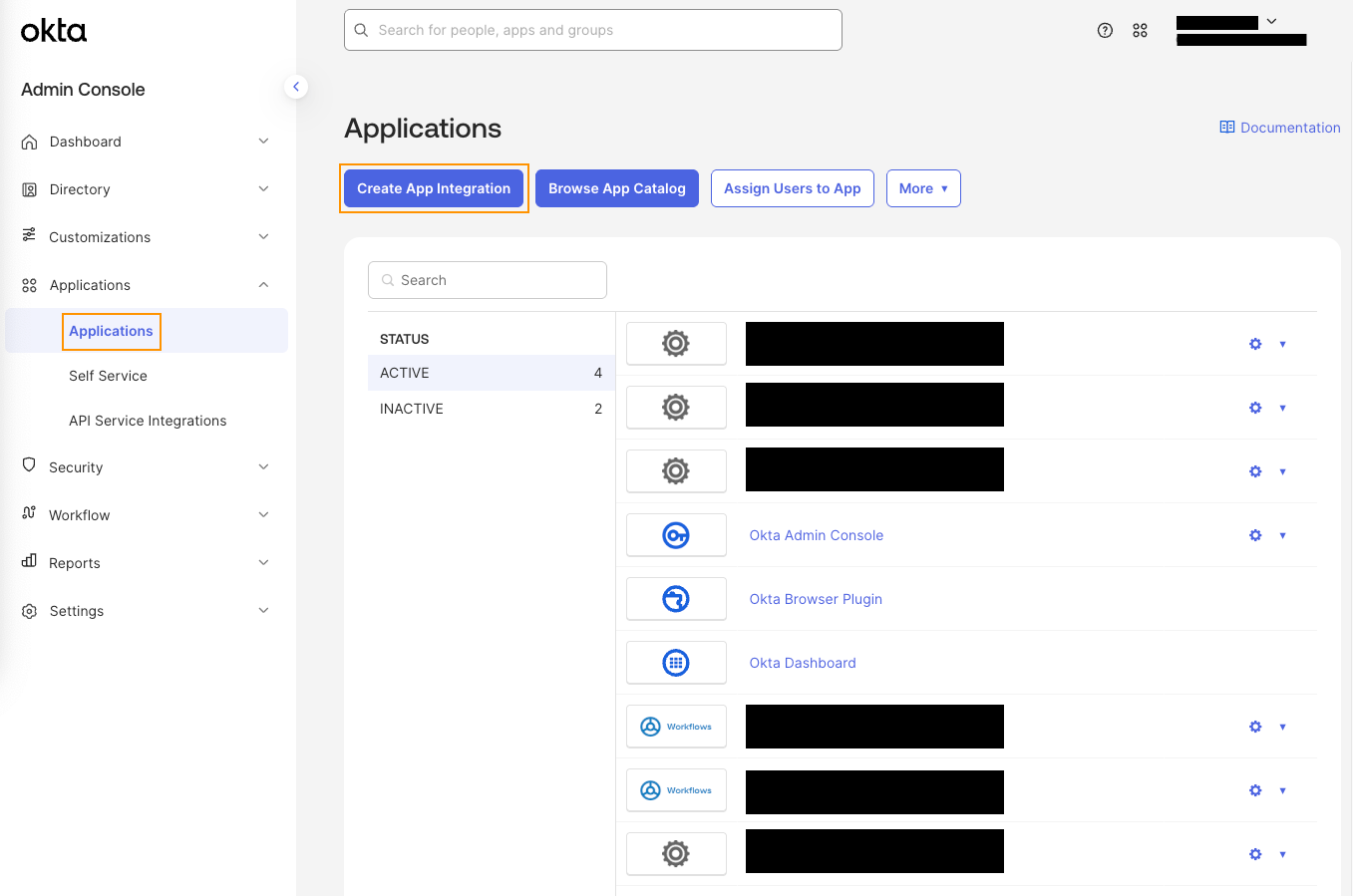
-
Choose SWA - Secure Web Authentication
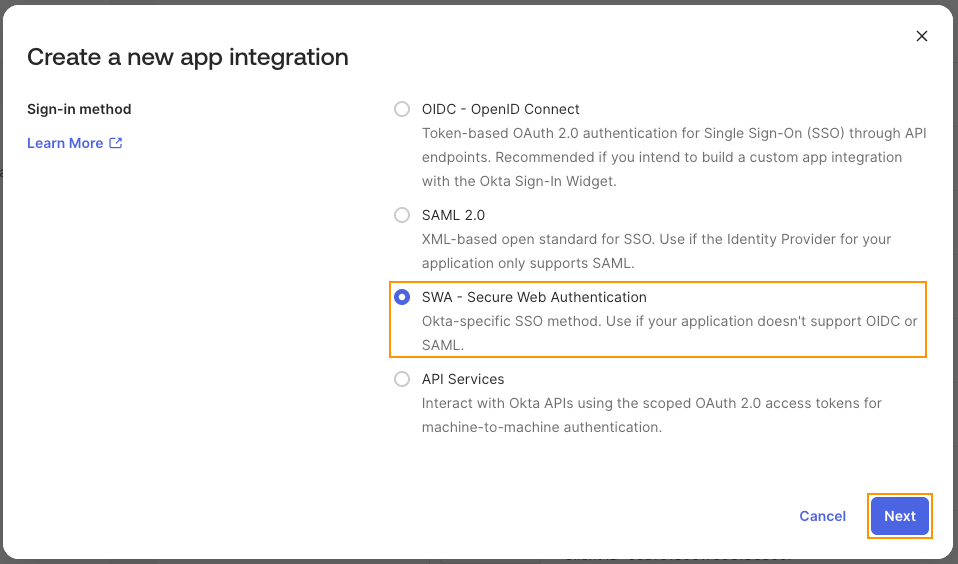
-
Enter a name and valid login URL (any placeholder URL will work)
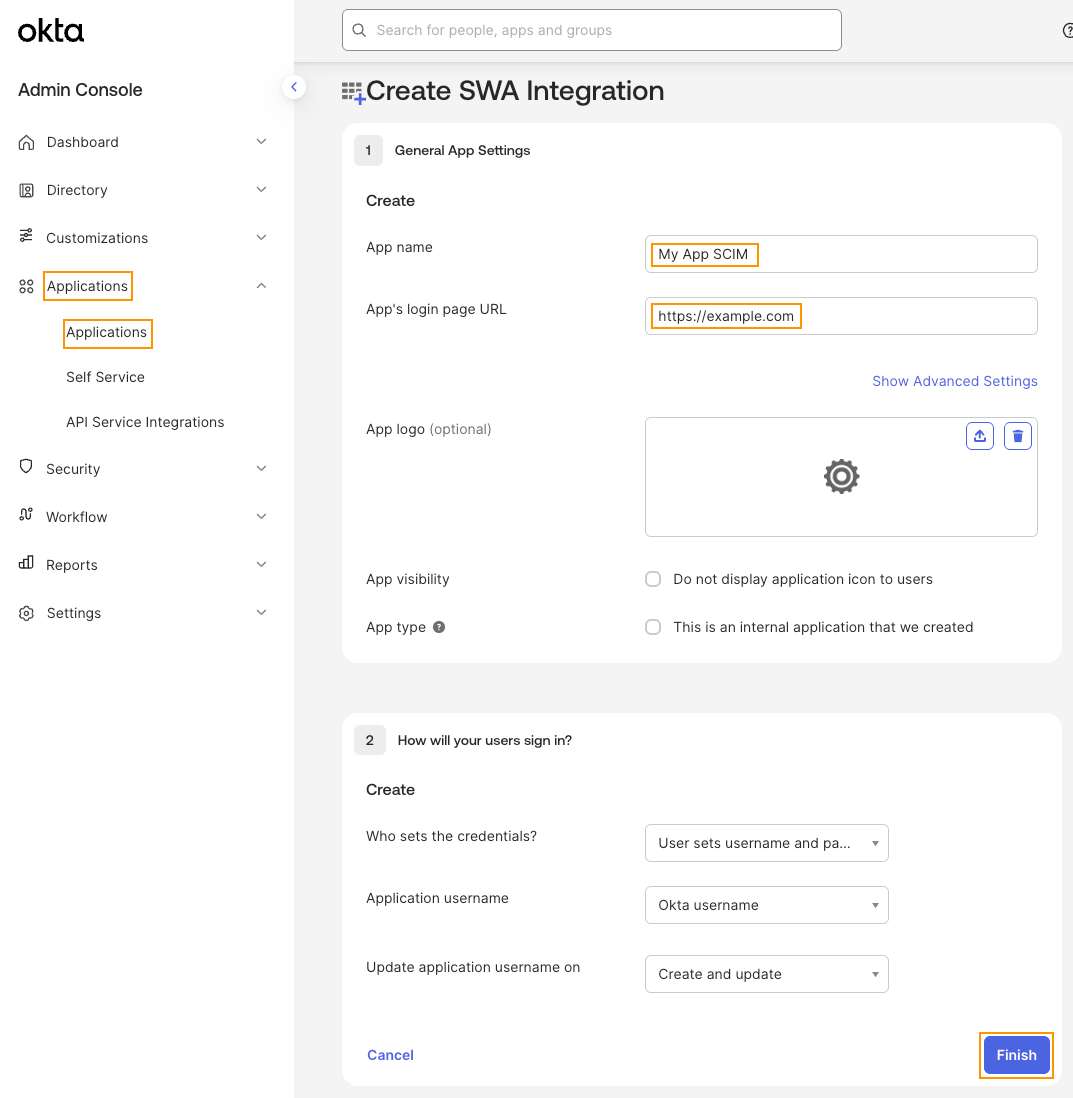
-
Click Finish
Set the Provisioning to SCIM
-
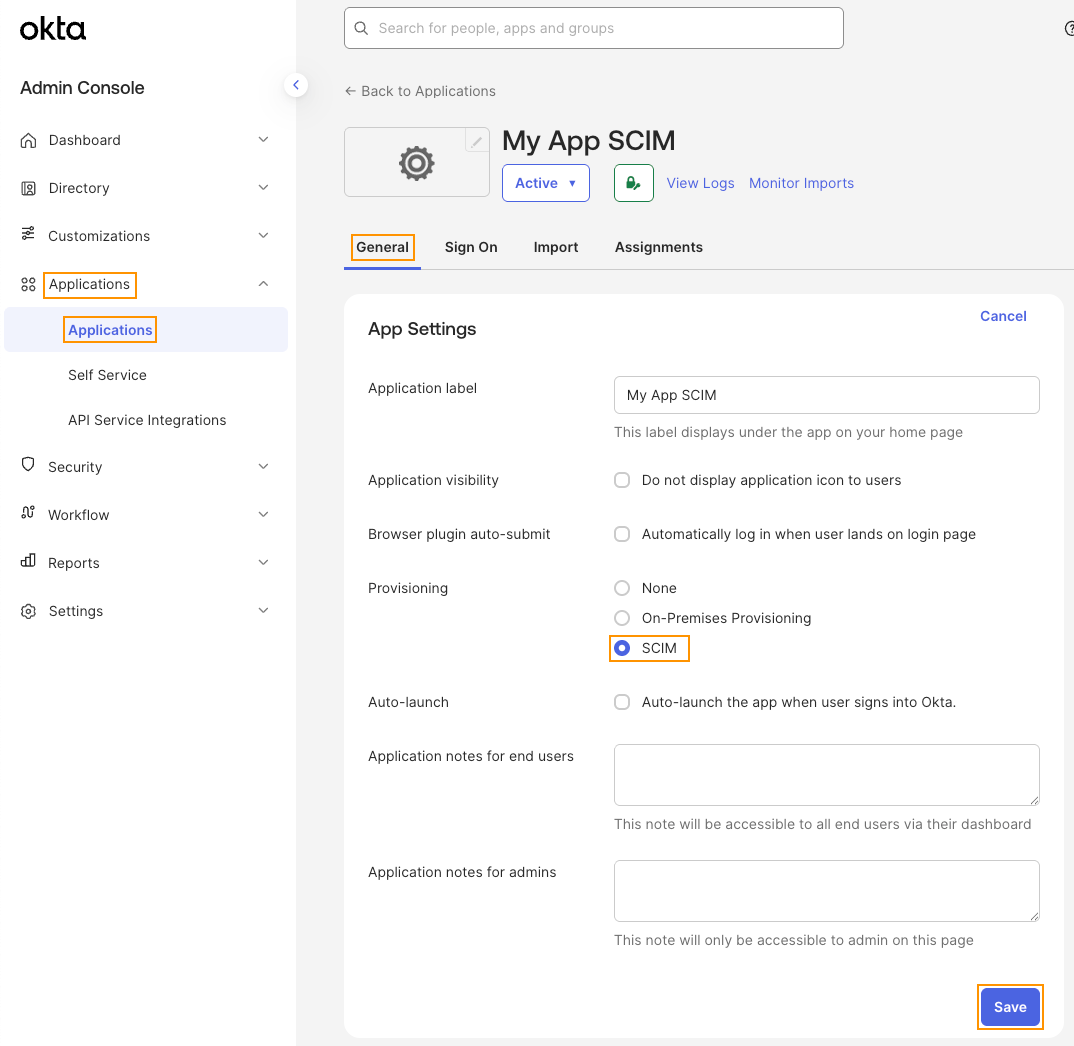
Click Edit on your new app, then select the SCIM as Provisioning type.
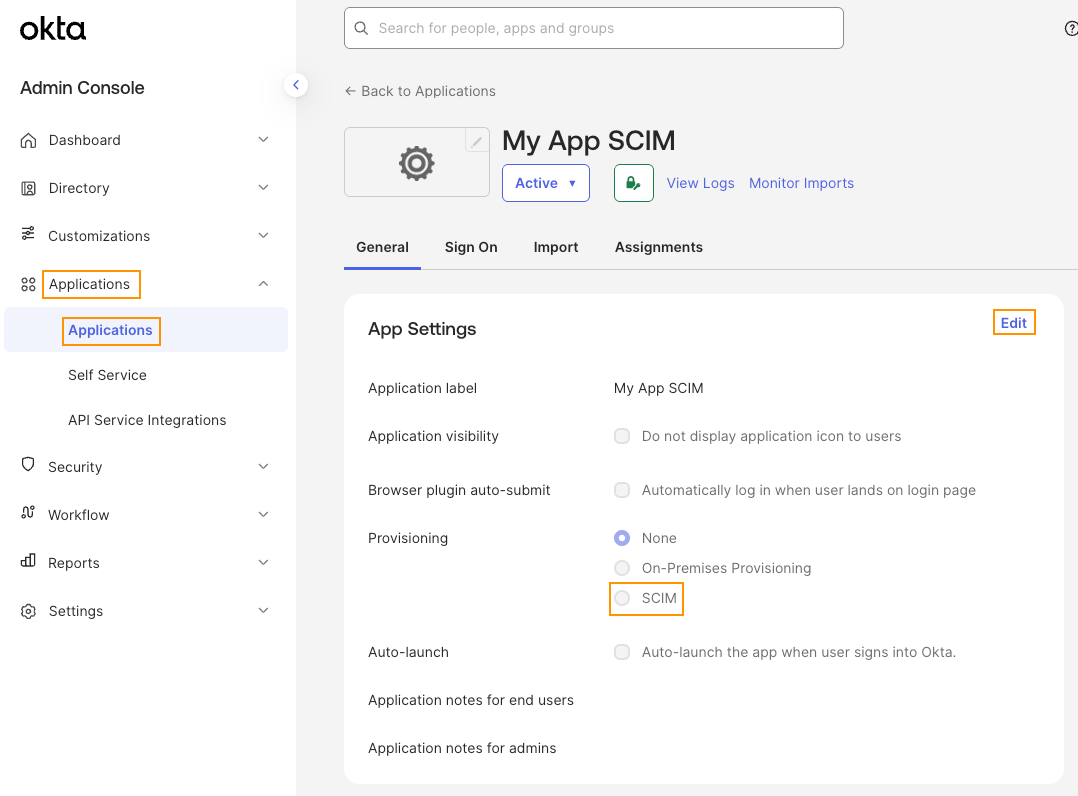
-
Click Save, when done.
Enable SCIM Provisioning
-
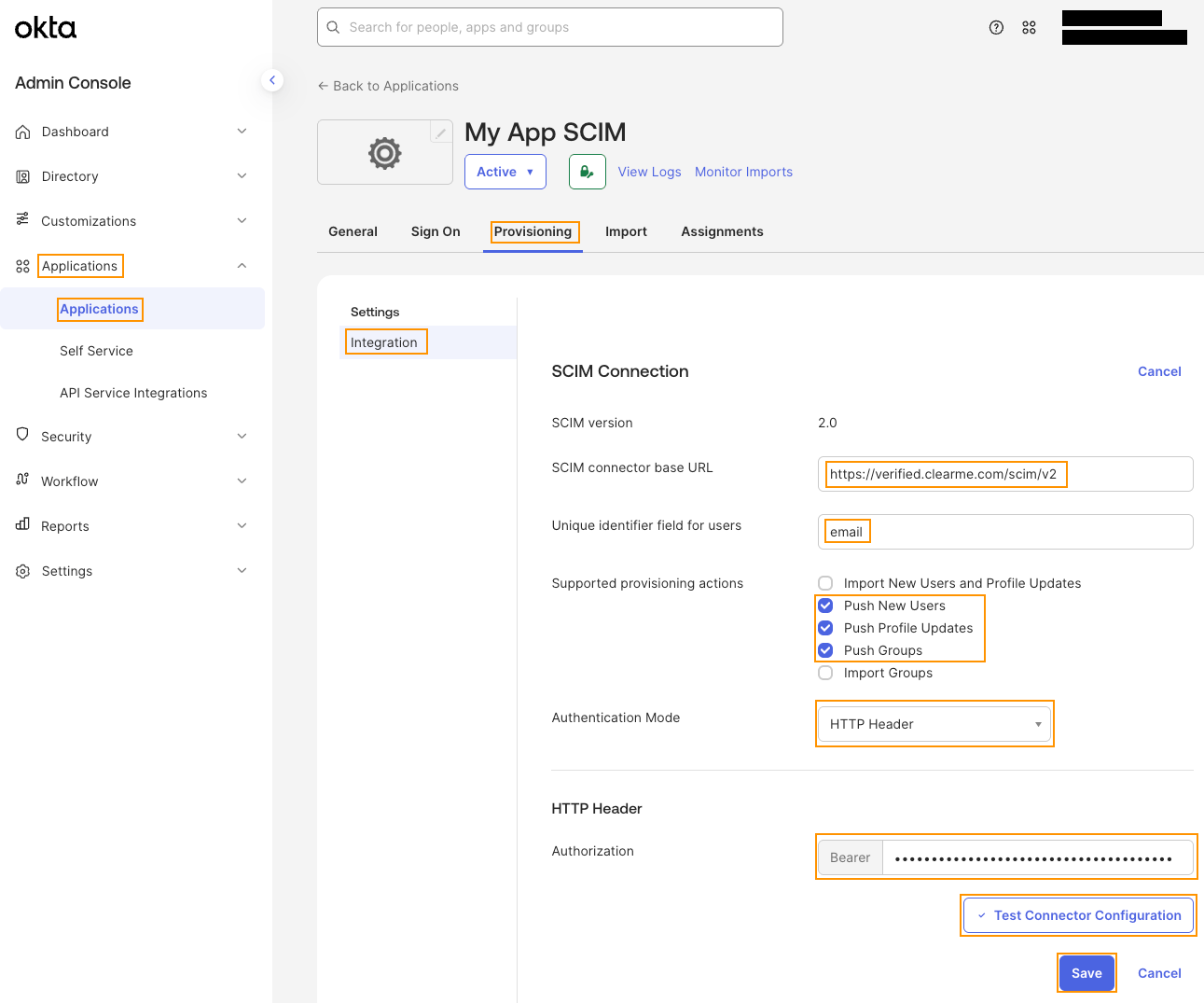
In your app, open the Provisioning tab → Edit
-
Enter:
- SCIM base URL:
https://verified.clearme.com/scim/v2 - Unique ID: email
- Authentication Mode: HTTP Header
- Bearer Token: Paste your CLEAR API key
- SCIM base URL:
-
Click Test Connector Configuration → then Save if successful.
-
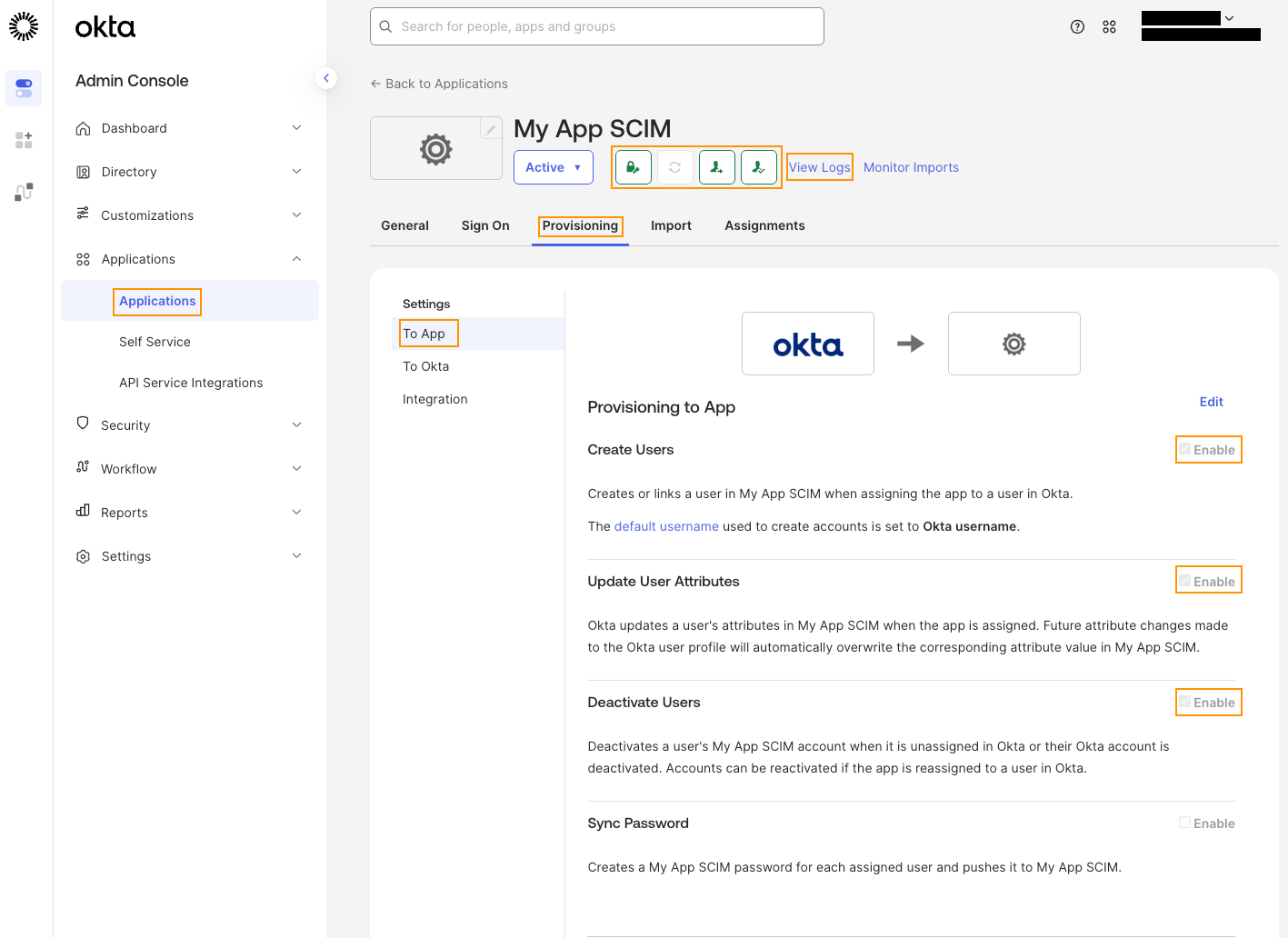
Enable:
-
Create Users
-
Update User Attributes
-
Deactivate Users
-
Save again.
-
Assign Groups to SCIM App
-
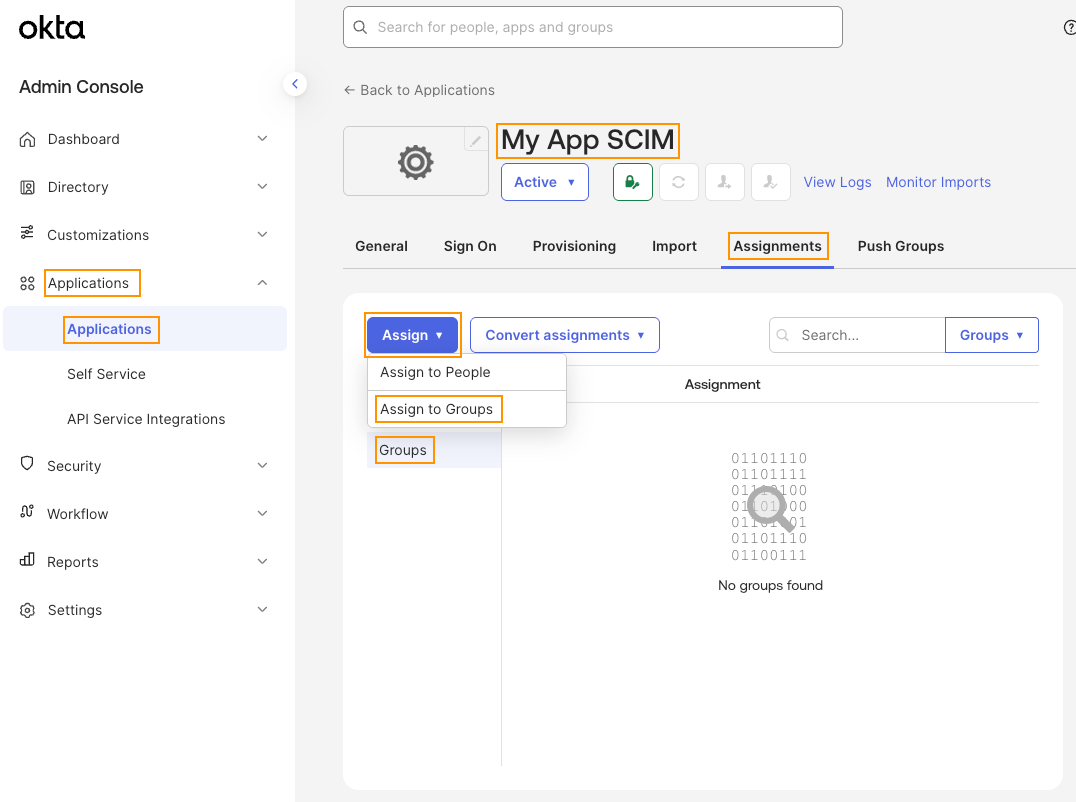
Go to Applications → [SCIM App] → Assignments → Groups
-
Assign your existing SSO/SCIM group to the SCIM app.
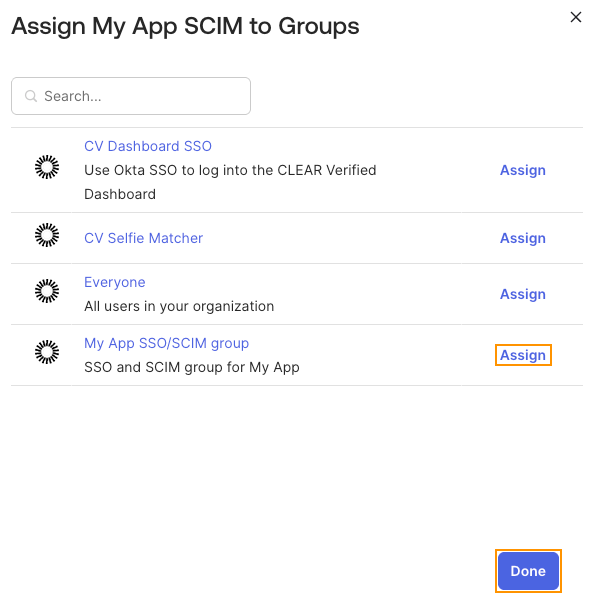
-
Alternatively, you can add People to your application, if preferred.
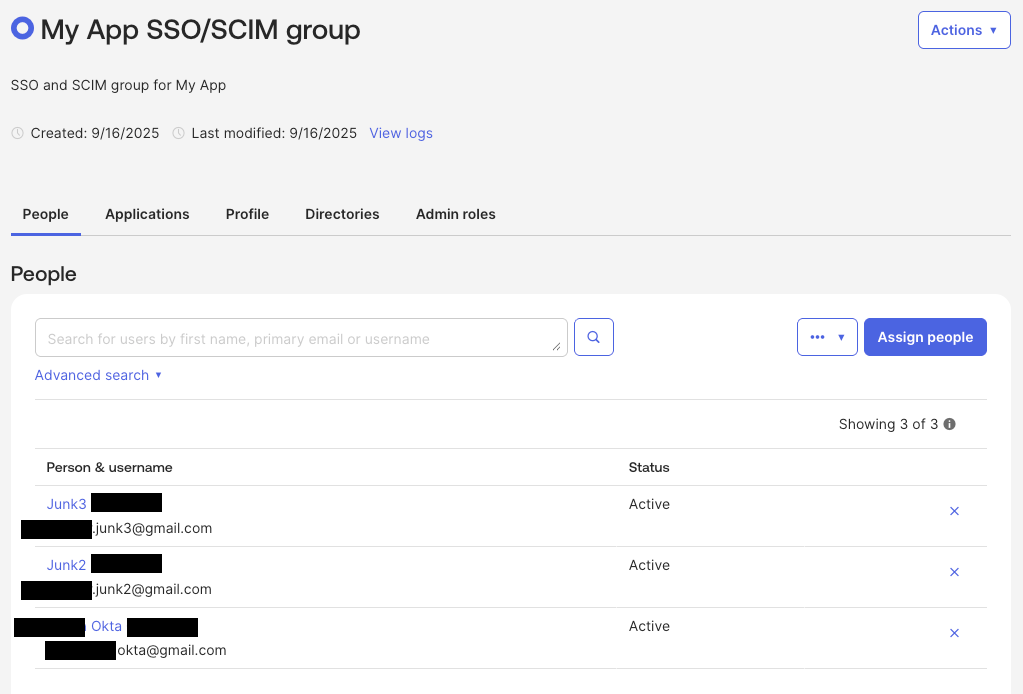
Test SCIM
- Assigning a user or group should automatically provision that user in CLEAR.
- If no roles are defined, the user defaults to the Agent role in CLEAR.
CLEAR Roles and Custom Role Setup (Optional)
Predefined Roles
- Agent
- Verification Checks Viewer
- Verification Table Viewer
- Selfie Match Reviewer
- Admin
- Manager
Note: Agent is the default role if none is specified.
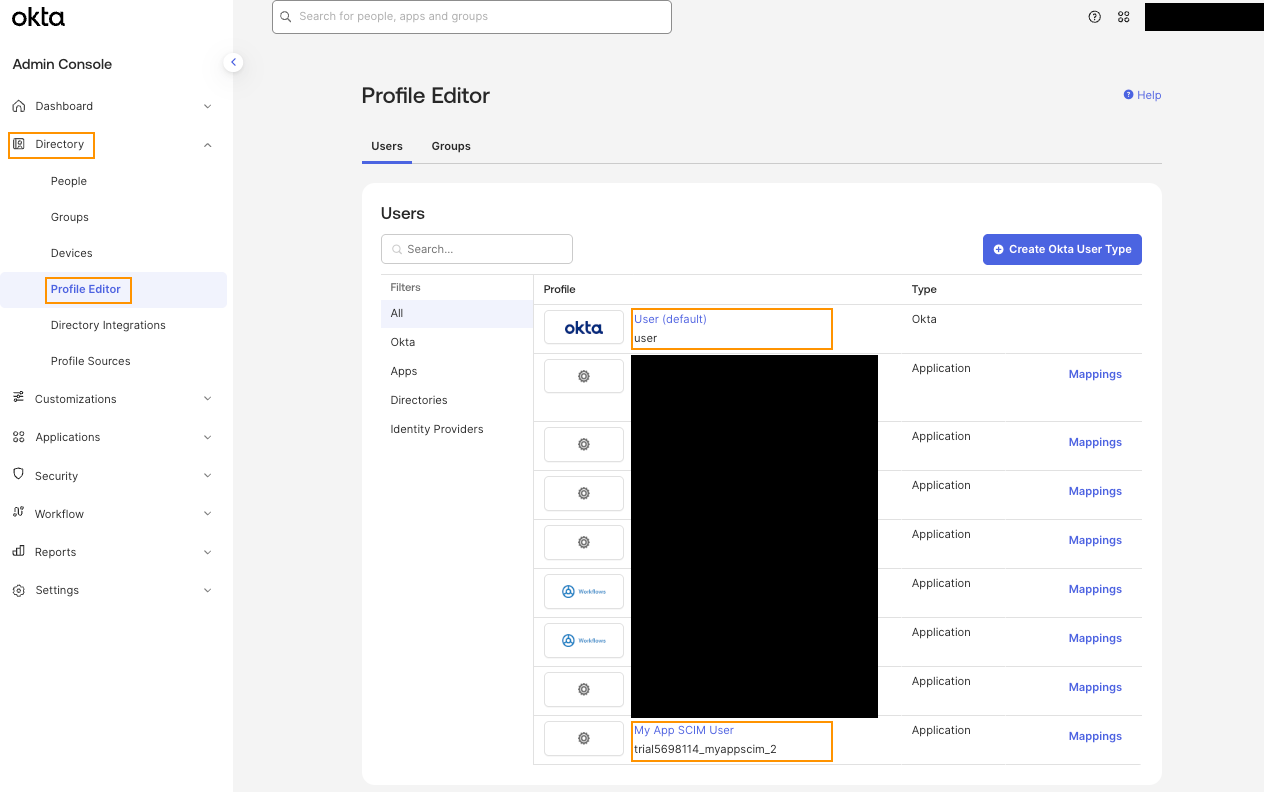
Adding Custom Role Mapping in Okta
-
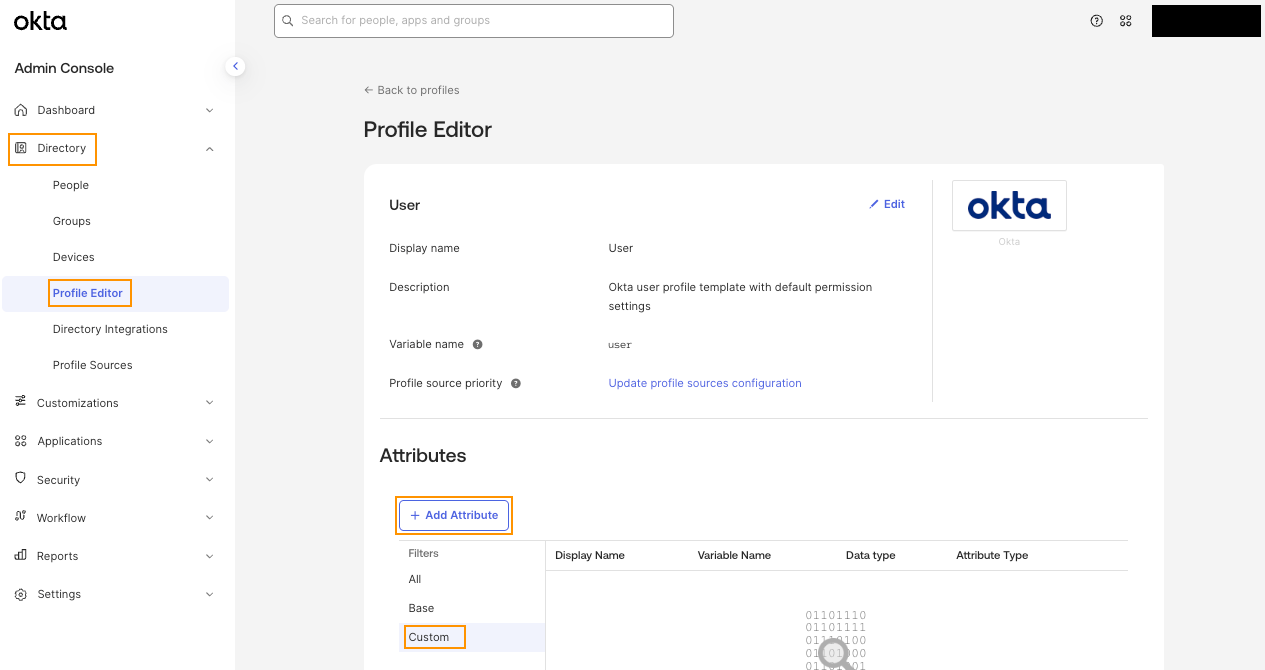
Go to Directory → Profile Editor
-
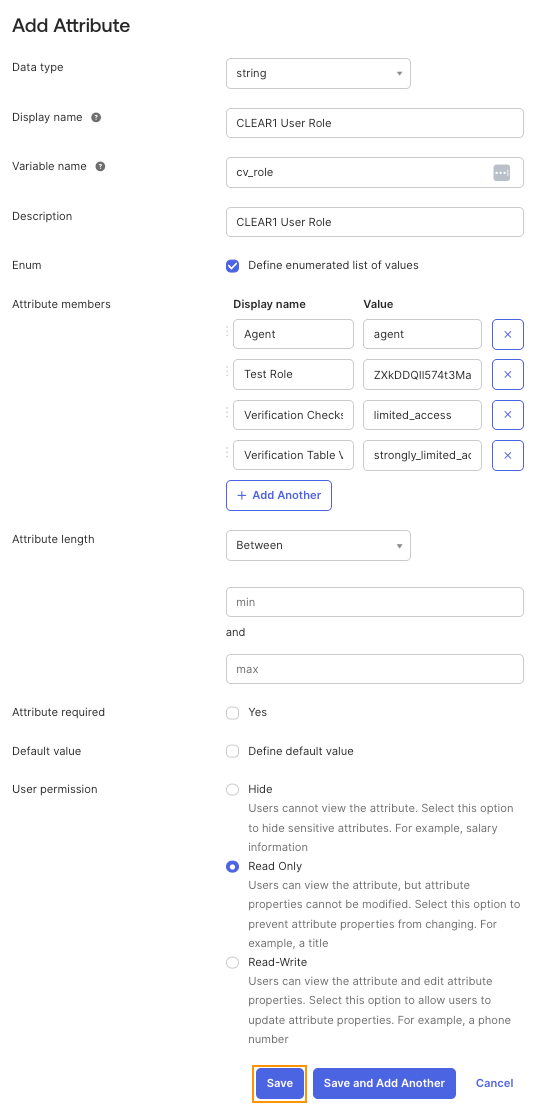
Edit the Okta User (default) profile → Add Attribute:
-
Display Name:
CLEAR1 User Role -
Variable Name:
cv_role -
Type: String
-
Enum: Define values (Agent, Admin, etc.)
-
Save.
-
Troubleshooting
If SCIM provisioning is not working as expected, check the following:
-
Users not provisioning:
Make sure the SCIM integration is enabled in Okta, the user is assigned to the SCIM app, and the provisioning rule is active. -
Connection errors:
Confirm the SCIM Base URL and API token are correct, and that the CLEAR SCIM service is reachable from Okta. -
Roles or groups not syncing:
Verify Okta group assignments are correctly mapped in the attribute mapping, and that CLEAR role values match. -
Provisioning passes but no changes occur:
Check that filters (if any) are correctly configured and not blocking user syncs. -
Deprovisioning or updates not applied:
Ensure Okta is configured to send updates and deactivations, and CLEAR supports the expected SCIM operations.
If problems continue, contact CLEAR Solutions Engineering with your Okta app name and example user.
Updated 3 months ago